General
|
PDF Filename
|
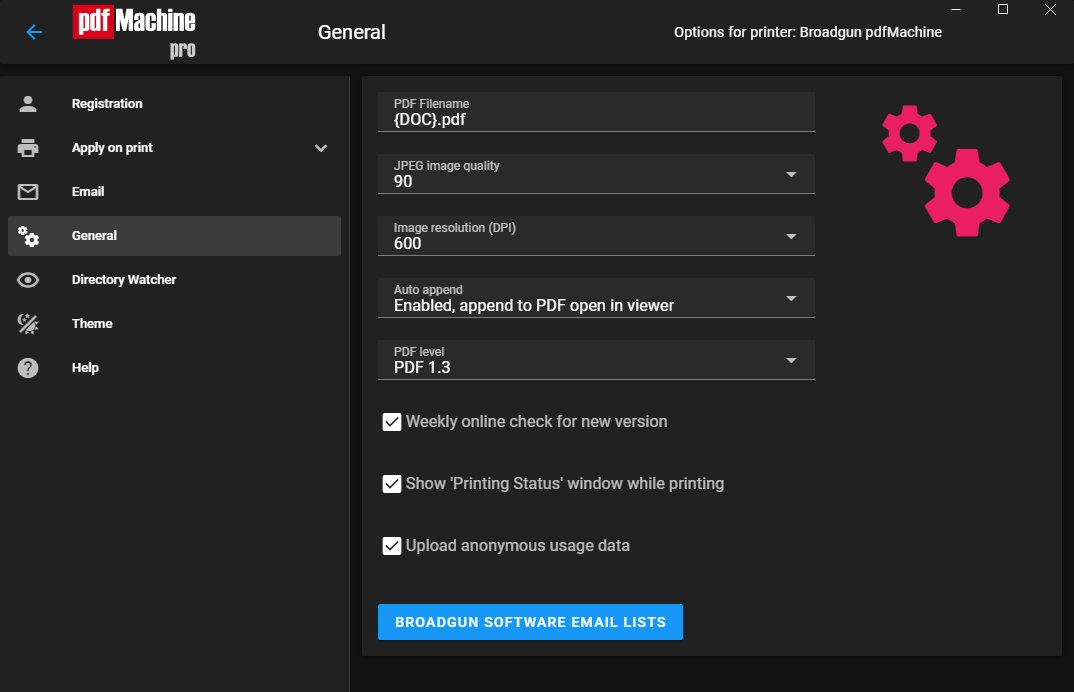
The output PDF filename. Not the full path, just the filename. e.g. When you go select the menu option "File | Save As" this is the default filename. Sophisticated control codes and tags can be used, as described here. For example you can use Windows Environment Variables to set the backup directory to a specific path relevant to a user. The setting of %HOMEPATH% will set the backup directory to the users path for the logged in user. Thus environment variables can be used with pdfMachine in a server environment to set the backup directory differently for each user. |
| JPEG Quality | High quality results in larger PDF files, low quality smaller PDF files. "No JPEG" means JPEG
compression is not used - "Flate" compression is used which is not "lossy" like JPEG.
|
| Image Resolution (DPI) | The resolution that images are 'down-sampled' to measured in dots per inch. Sometimes images
are sampled at a high DPI for better results when printing to high-end printers. These high DPI sampled images result
in larger PDF files. Screen resolution is 96 DPI, which is a good setting for PDF files intended solely for screen
viewing.
|
| Auto append | When checked, PDFs are automatically appended to the currently open PDF in the pdfMachine viewer.
If not checked, a separate viewer is launched for each print job.
|
| PDF Level | Select the PDF level if you want the created PDFs to be PDF/A compliant. For example selecting PDFA/A-1b will make PDFs produced by pdfMachine conform to the PDA/A-1b file format for long-term preservation. |
| Weekly online check | If enabled, pdfMachine checks the Broadgun website once a week to see if a new version of pdfMachine has been released. If so, a message is displayed. |
| Show Printing Status | If enabled, a dialog box is displayed showing the progress of the print job. |
| Upload anonymous usage data | pdfMachine uses Google Analytics to help make the product better. If this option is checked then you are sharing your usage data to our Google analytic account, no personally identifying information is uploaded. Just events like which buttons were clicked, what menu options were chosen. This helps us know what features our customers use most often.
|
Output Filename
The resulting PDF file can be named using sophisticated tags and control characters to include things as timestamps, auto incrementing numbers and environment variables.
The time stamping follows the syntax of the C programming function strftime.
Time stamping codes
The formatting codes for strftime are listed below:
%a
Abbreviated weekday name
%A
Full weekday name
%b
Abbreviated month name
%B
Full month name
%c
Date and time representation appropriate for locale
%d
Day of month as decimal number (01 – 31)
%H
Hour in 24-hour format (00 – 23)
%I
Hour in 12-hour format (01 – 12)
%j
Day of year as decimal number (001 – 366)
%m
Month as decimal number (01 – 12)
%M
Minute as decimal number (00 – 59)
%p
Current locale's A.M./P.M. indicator for 12-hour clock
%S
Second as decimal number (00 – 59)
%U
Week of year as decimal number, with Sunday as first day of week (00 – 53)
%w
Weekday as decimal number (0 – 6; Sunday is 0)
%W
Week of year as decimal number, with Monday as first day of week (00 – 53)
%x
Date representation for current locale
%X
Time representation for current locale
%y
Year without century, as decimal number (00 – 99)
%Y
Year with century, as decimal number
%z, %Z
Either the time-zone name or time zone abbreviation, depending on registry settings; no characters if time zone is
unknown
%%
Percent sign
Auto Incrementing Numbers (e.g. Bates numbering)
{AUTONUM} {AUTONUM2} {AUTONUM3} {AUTONUM4} {AUTONUM5}
These tags are dynamically substituted with a variable that is automatically increment upon each use.
The number after the AUTONUM refers to the field size of the number, i.e. how many digits make up the number, including leading zeros.
e.g. If the output filename is "tmp_{AUTONUM}.pdf" then the first time the file will be "tmp_0.pdf" and the second time it will be "tmp_1.pdf" and so on.
{DOC_FULL}
This tag is dynamically substituted with the print job name. The print job name is set by the application
that is doing the printing but is usually derived from the document file name.
{DOC}
This tag is similar to DOC_FULL, except this tag also strips out all characters prior to the first '-' character. It also strips out all characters after the last '.' character.
This can be handy if a long prefix is on all print job names of a particular application. It is also handy to remove the "Microsoft Word - " prefix and the ".docx" suffix on Word print jobs.
{DOC_NOSUFFIX}
This tag is similar to DOC_FULL, except this tag also strips out all characters after the last '.' character.
This can be handy if the print job names include the type of file as a suffix eg ".xlxs" and you don't want your PDF to have the suffix '.xlsx.pdf'.
For example, if a print job has the job name "Microsoft Word - document1.docx"
A tag of {DOC_FULL} will result in a filename of "Microsoft Word - document1.docx.pdf"
A tag of {DOC} will result in a filename of "document1.pdf"
A tag of {DOC_NOSUFFIX} will result in a filename of "Microsoft Word - document1.pdf"
Environment Variable Substitution
Any Windows environment variable can be used inside of the curly braces and the value is dynamically substituted to create a filename.
e.g. if the output filename is set to "{USERNAME}.pdf" and the user "Fred" is logged on then the filename will be "Fred.pdf".
Example 1
The default output filename for scanning is:
%Y-%m-%d %H-%M-%S scan by {USERNAME} - {AUTONUM5}.pdf
If the user Fred is logged on the first scanned document will have a name of:
2009-03-29 13-31-35 scan by Fred - 00000.pdf
Example 2
%Y-%m-%d %H-%M-%S {DOC}.pdf
If the document named "readme.doc" was printed to pdfMachine, this would result in a PDF named:
2011-03-29 13-31-35 readme.pdf