Stamp / Watermark
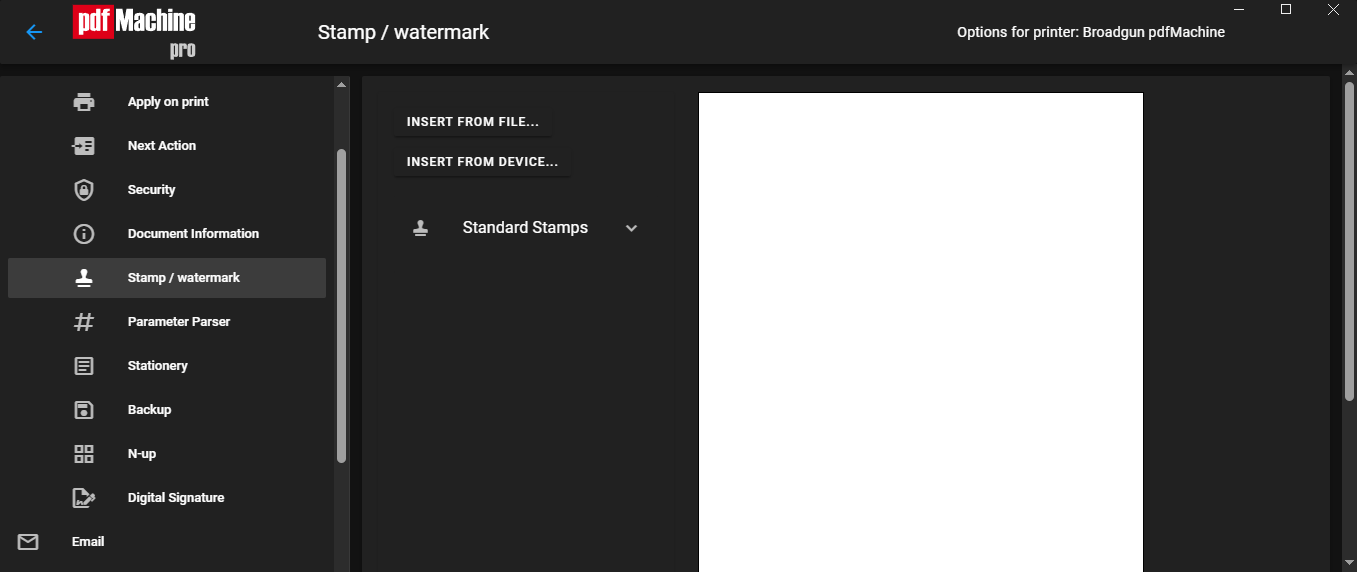
Text and images can be placed on every page of the PDF file. The stamps can be selected, moved around, resized and rotated by clicking and dragging on the preview window.
When a stamp is selected, grab points will appear on the edges allowing resizing. A small yellow circle will appear above the top centre of the stamp. When clicked this allows the user to rotate the selected stamp.
The "insert" button (from file or device) allows images to be placed.